Email inbox
Documents emailed to this workspace's inbox addresses.
Workflows & integrations
A visual workflow builder that moves checked data into your sheets, databases, accounting system and team chat — automatically, the moment a document is ready.
01How it works
Set it up once. After that, every document that passes its checks is delivered without anyone touching it.
Documents arrive by email, WhatsApp, upload, API, a Google Drive folder or an SFTP folder. Pick the ones this workflow listens to.
Run when data is ready, needs review or fails — for the document types you choose. Branch with conditions such as total > ₹1,00,000.
Point each column or field at extracted data, a template or a fixed value. One row per document, or one per line item.
Every run lists each step with its result. Failed steps retry on their own; anything else can be re-run with one click.
02In the product
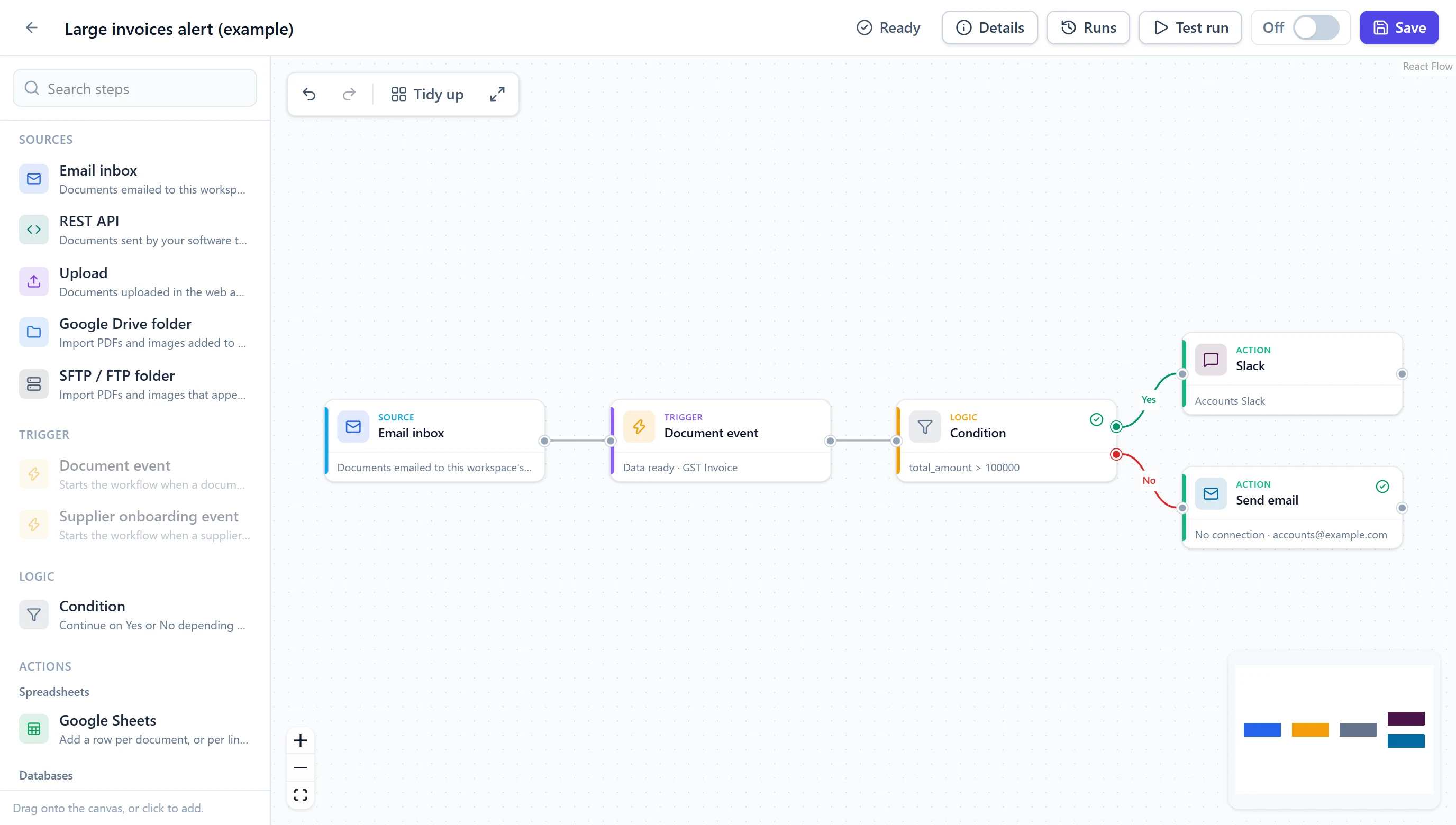
Steps on a canvas, settings on the right, problems flagged before you switch anything on. Test on a real document, then turn it on.
03Connections
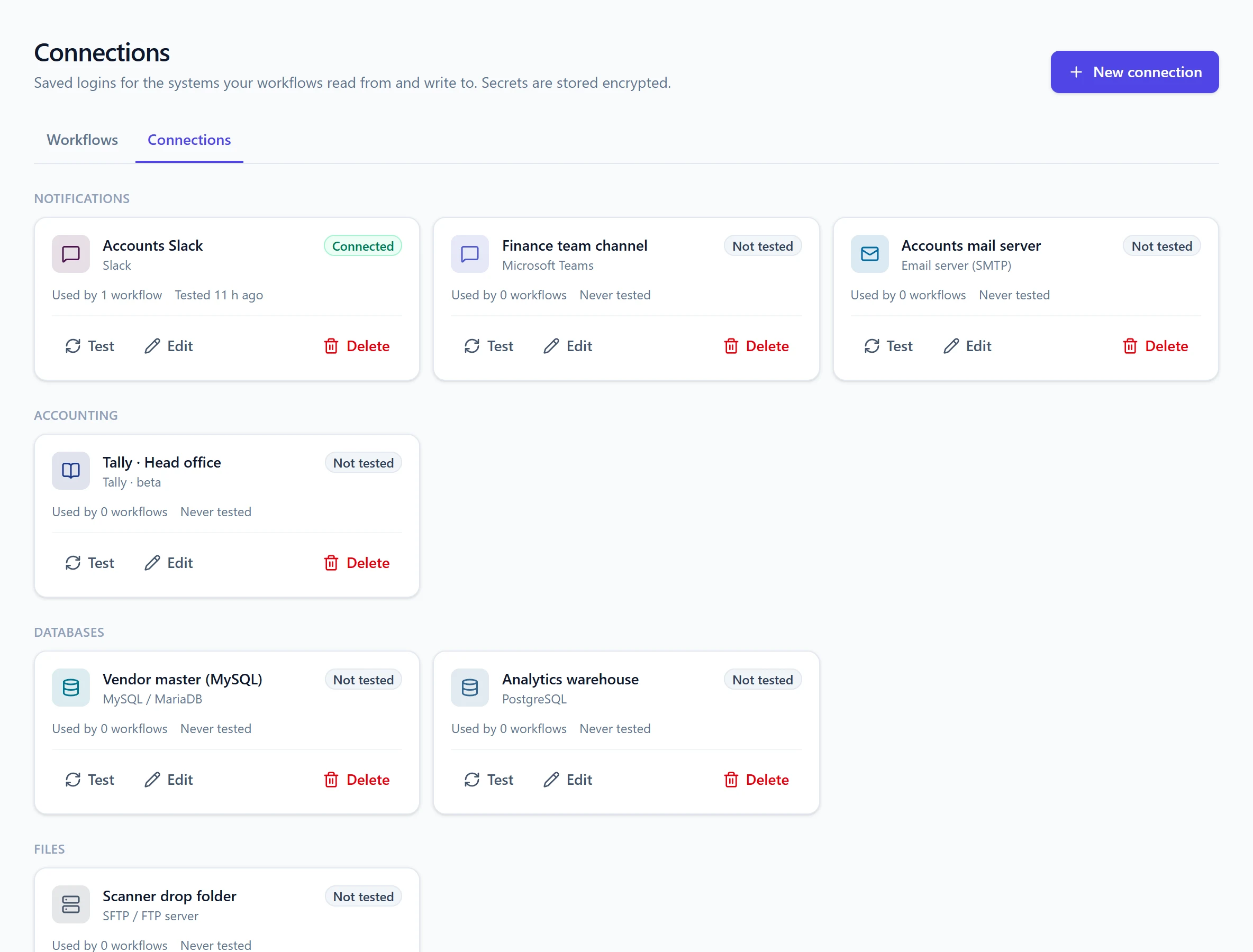
Save a database, Tally server, mail server or Slack channel once and reuse it in every workflow. Test it with one click; secrets stay encrypted.
04Connectors
Spreadsheets, databases, file storage, notifications, messaging, accounting and webhooks — ready to drop into any workflow.
05Sources
Documents emailed to this workspace's inbox addresses.
Documents sent by your software through the API.
Documents uploaded in the web app.
Photos and PDFs suppliers send to your WhatsApp number (document intake in Conversations → Settings).
Import PDFs and images added to a Drive folder (checked every minute).
Import PDFs and images that appear in a folder on your file server (checked every minute).
06ERP · Beta
Connectors for seven ERPs post checked invoices against the purchase order, keep the supplier master up to date, book goods receipts and ask the ERP before anything is posted.
An approved invoice becomes a purchase invoice (AP bill) against its PO, with your GST tax codes, the supplier found by GSTIN and a duplicate check.
A supplier approved in onboarding is created in the ERP with GSTIN, PAN, address, contact and bank details.
A scanned GRN from the stores is posted as a goods receipt against the PO, using accepted or received quantities (all except Finance & Operations).
Ask the ERP before acting: does the invoice match its PO (2- or 3-way), does the PO exist, is the supplier set up? The workflow goes Yes or No.
Cloud ERPs connect with their HTTPS address. For an ERP in your own data centre, use a site-to-site VPN: the network it sits on is allowed for connectors, and every other private address stays blocked.
Invoices are saved for review in the ERP by default (as a draft, parked or pending invoice), for your team to check and post. An invoice number already there for the same supplier is skipped, so a retried run never posts twice.
07Templates
Pick a template, choose your connections and switch it on. Every step stays editable.
Every approved supplier invoice from the inbox becomes a row in your purchase register, and the team gets a Slack message.
Invoices above ₹1,00,000 are emailed to the finance head with the Excel attached; the rest go straight to the database.
Each transaction of every bank statement sent through the API is inserted as a row into your database table.
PDFs dropped into a Google Drive folder are read and posted to Tally as purchase vouchers once approved.
Any document that cannot be read posts a message to Microsoft Teams so someone can resend it.
When a supplier is approved, a ledger is created under Sundry Creditors in Tally and the supplier is added to your vendor master sheet.
When a supplier submits the onboarding form, the accounts team gets an email with the details and the supplier record attached.
Each approved invoice is matched with its purchase order and goods receipts in SAP. Matching invoices are parked against the PO for posting; the rest go to accounts payable with the differences listed.
Goods receipt notes from the stores are read and posted as goods receipt POs against their purchase order, with the accepted quantities. The team gets a Slack message.
When a supplier is approved, they are created as a vendor in Business Central with GSTIN, address and contact, and the team is told on Microsoft Teams.
Invoices that quote a purchase order found in Odoo become draft vendor bills linked to the PO lines; invoices without a known PO are posted to Slack for someone to follow up.
When a supplier is approved, they are created as a vendor in Zoho Books with GST, PAN and address, and the team is told on Slack.
Each approved invoice is matched with its purchase order and goods receipts in SAP. When it does not match, an AI agent phones the supplier, explains the difference and asks for a corrected invoice.
Every analysed AI call becomes a row in your call log sheet. When the customer is interested or asked for a callback, the sales team gets a Slack message.
08AI calling
Two workflow steps connect the AI calling agents to everything else: one places a call, the other starts a workflow when a call ends. See AI calling
Rings a supplier or customer with the agent you choose and an objective written from the document's data, such as an invoice that does not match its PO. The call goes out at once, or waits for your calling hours; numbers on the do-not-call list are never dialled.
Starts a workflow when a call's analysis is ready, or when a call was not answered. Filter by agent, direction or outcome, then send the result to Google Sheets, Slack, Teams, email, a database or your CRM through a webhook.
09Messaging
The Messaging connector group: your WhatsApp Business number on Meta's WhatsApp Cloud API, and your own SMS gateway. Two steps send messages; one source brings documents in. See WhatsApp & SMS
Sends an approved template to a supplier, customer or call contact, with its variables filled from the data. When the template has a document header, attach the original file, or an Excel, CSV or JSON of the data. Plain text works only within 24 hours of the person's last message.
Sends a DLT-approved template through your SMS gateway, with its {#var#} values filled in order from the data. Numbers that opted out of SMS are never messaged.
Starts document workflows for invoice photos and PDFs sent to your WhatsApp number, just like the email inbox source. The sender gets a reply when each document is read.
10Built for real operations
Not a one-off script: workflows you can trust with invoices, payments and supplier records.
See supplier onboarding with workflowsDrag steps onto a canvas and connect them. Every connector is configured from the same clear panel — no code.
Send large invoices for approval and the rest straight to your books, with Yes and No paths on the canvas.
Map per document or per line item, auto-map by name, and use templates like {{data.invoice_number}} anywhere.
A failing step is retried up to three times. The run history shows what was sent where, and why anything failed.
Database passwords, webhook URLs and OAuth tokens are encrypted at rest and never shown again after saving.
Run a workflow on any existing document before switching it on, and watch each step complete in real time.
Start a workflow when a supplier is approved, and create them in Tally, Zoho Books, QuickBooks, your ERP or your vendor master.
Plans decide how many workflows can run and which connector groups are available, so you grow into what you need.
11Security
Workflows touch your most sensitive systems, so connections are treated like passwords — because they are.
Read about securityConnection secrets are encrypted with a server key and are write-only in the app.
Webhook, database, file-server and ERP targets on private networks are blocked, unless a specific network such as your VPN has been allowed.
Webhooks carry an HMAC-SHA256 signature so your systems can verify every request.
Creating connections and switching workflows on or off is recorded with who did it and when.
12FAQ
No. Workflows are built on a visual canvas by dragging steps and filling in forms. Developers can still use webhooks and the REST API for anything custom.
Google Sheets and Drive, MySQL, MariaDB, PostgreSQL, SQL Server and Oracle databases, SFTP and S3 file storage, email, Slack and Microsoft Teams, WhatsApp and SMS through your own accounts, Tally, Zoho Books and QuickBooks, the ERPs SAP S/4HANA, SAP Business One, Microsoft Dynamics 365 (Business Central and Finance & Operations), Oracle NetSuite, Odoo and ERPNext (accounting and ERP connectors are in beta), and any URL through a webhook — which also connects PW to Zapier, Make and Power Automate. On plans with AI calling, a workflow can also place a phone call with the AI phone call step.
The Tally step posts a purchase voucher (or, for supplier onboarding, a supplier ledger) through Tally's XML interface. Tally must run as a server and be reachable from our servers, for example over a VPN or a forwarded port.
Yes, over a public HTTPS address or a site-to-site VPN. Private network addresses are blocked by default; for a VPN, the network your ERP or database server is on is added to an allowed list, and nothing else on your network becomes reachable.
The step is retried automatically with a short wait between attempts. If it still fails, the run is marked as failed with the reason, the steps after it on that branch are skipped, and you can re-run it from the run history.
Yes. The trigger can be limited to certain document types and sources, and conditions can check any extracted value — supplier, amount, confidence and more — before anything is sent.
They are encrypted at rest, never returned by the API after saving, and only used by the server when a step runs. Sign-in based connections (Google, Zoho, QuickBooks) store OAuth tokens instead of passwords.