Invoice header
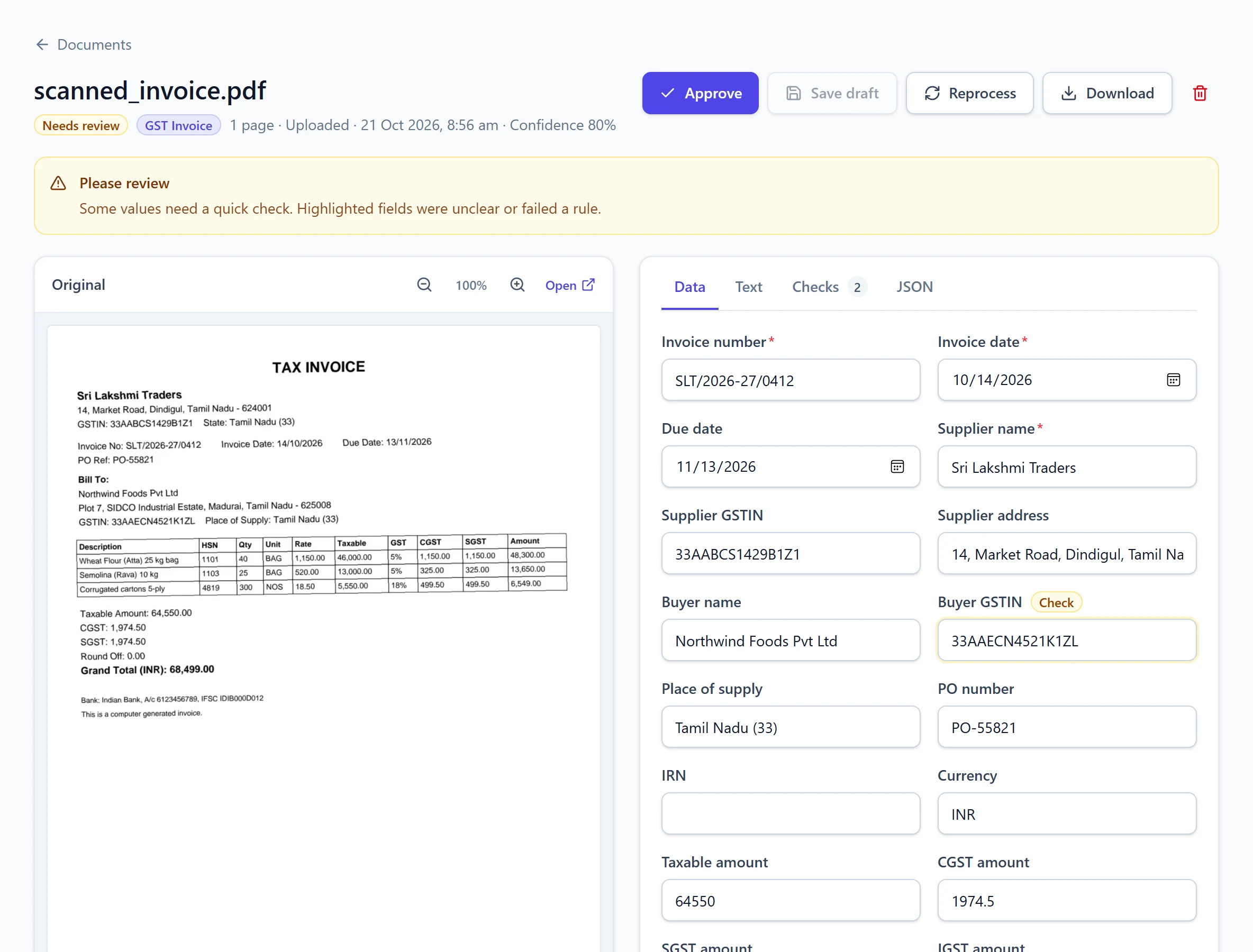
Invoice number · Invoice date · Due date · Supplier name, GSTIN and address · Buyer name and GSTIN · Place of supply · PO number · IRN (e-invoice) · Currency
Accounts payable
Every supplier formats invoices differently. Forward them as they arrive and get the same clean fields every time, with GSTINs and totals checked before anything reaches your ERP.
01The problem
02Checks
03What you get
Ready to use out of the box. Add, rename or remove fields for your workspace at any time.
Invoice number · Invoice date · Due date · Supplier name, GSTIN and address · Buyer name and GSTIN · Place of supply · PO number · IRN (e-invoice) · Currency
Description · HSN/SAC · Quantity and unit · Unit price · Taxable value · GST rate · CGST, SGST, IGST · Line amount
Taxable amount · CGST, SGST and IGST amounts · Cess · Round off · Grand total
04In the product
Every value sits next to the original page, every check explains itself, and nothing reaches your systems until it passes or a person approves it.
05Workflow
Tip: send these documents to your workspace address with the .invoices alias so they skip auto-detection.
Suppliers or your team send invoices to your workspace's invoices address, or you upload them in bulk.
Each page is read, including scans, and the fields above are filled and checked.
Clean invoices are approved automatically; anything doubtful waits in the review queue.
Download Excel for your accountant, post to Tally or your ERP with a workflow, or push JSON through the API or a webhook.
06More solutions
Read supplier invoices, match them with the purchase order and goods receipt in your ERP, and save them there for review. Only the exceptions reach a person.
Convert bank statement PDFs, including scans, into a clean transaction table with dates, narration, debits, credits and balances that reconcile.
Capture purchase orders and goods receipt notes into structured data for three-way matching: PO numbers, items, quantities received, accepted and rejected.
Convert PDFs, scans and photos to clean text with OCR for English, Hindi and Tamil. Upload, email or use the API; download .txt or get JSON.